Contract Requests and Approvals
The Approval Workflows screen is where you can request a new contract for approval. To begin, click the "Create Contract for Approval" button:
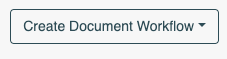
You will then see a dropdown menu of the contract types that have been configured by your Administrator.
Metadata entry
Once you have selected the relevant contract type, you will see a screen similar to the following:
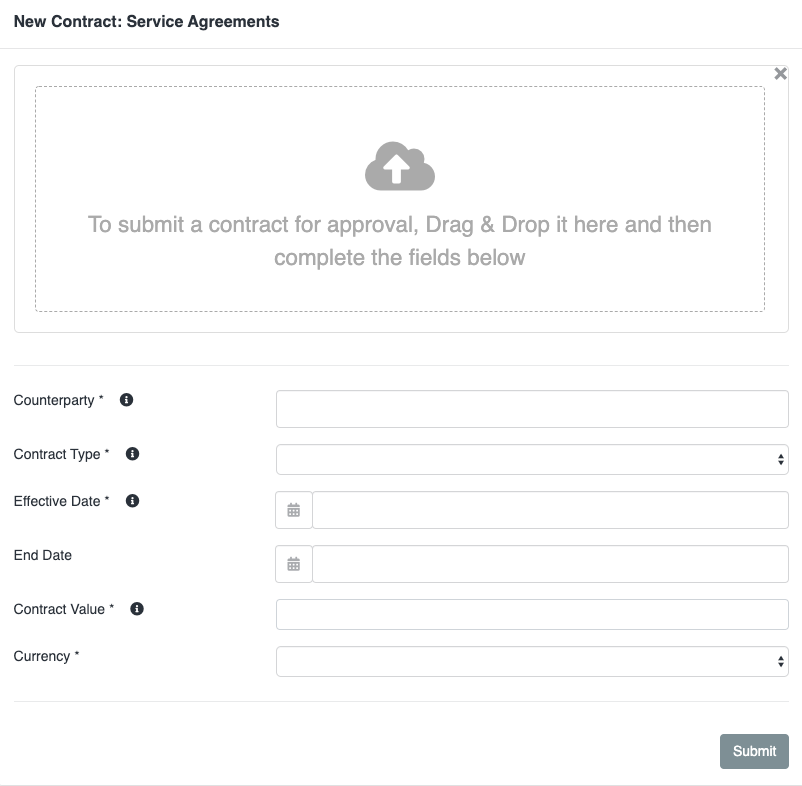
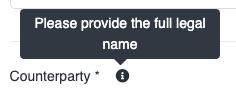
Firstly, upload your contract into the Drag & Drop area. Then, enter the relevant metadata fields. An asterisk indicates a mandatory field. You can hover your mouse over the information icon to learn more about any particular field:
Once you have finished entering the metadata, click "Submit" to submit the contract for approval. Once a contract has been submitted, you can track progress in three ways:
- To Do - This will show documents that have been sent back to you for further action eg correcting errors, further approval, or signing
- In Progress - This will show documents that have you have sent and that are currently awaiting further action from others
- Finalized - This will show documents that have been signed and filed into the Aerofiler repository
Quick filter
A quick filter is available:

This will allow you to filter data by any of the columns:
- Counterparty
- Workflow Name
- Submitted By
- Submitted On
- Previous Step
- Current Step
Comments
0 comments
Please sign in to leave a comment.